From registration to your first dictation
Each step is described here in detail. The apps have a German interface; their labels are quoted here in German with an English translation.
- 1
Register
Create an account with your email address and a password and open the link in the confirmation email.
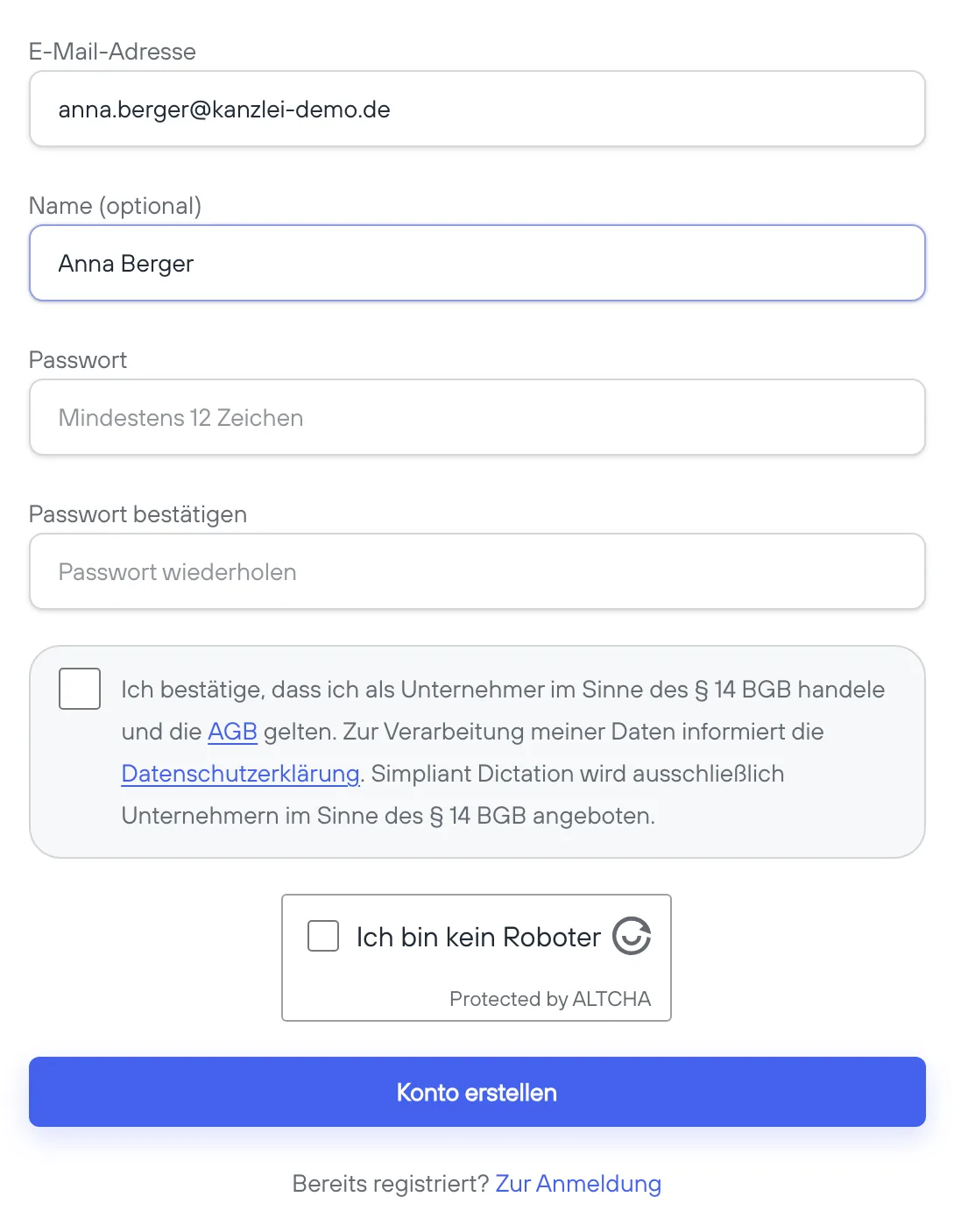
Registration with email address and password. - 2
Start your trial
First: billing details and contracts
To start the trial, enter your billing details: law firm, practice or company with its address. When you start, you accept with a separate declaration the Terms including their annexes, the confidentiality agreement and the data processing agreement. The contract documents arrive as PDF files by email and are also available in the customer area. Under “Contracting party and contracts” you can optionally add details of your firm and retrieve a copy of the data processing agreement containing those details.
Add a credit card in your customer area under “Plan & billing”. That starts your free trial: 30 days, 10 hours of dictation. For the card check we charge €0.01, which is refunded automatically. We remind you by email seven days before the first charge. Unless you cancel, the trial then continues as Professional: €35 per user per month, excl. VAT, cancel monthly.
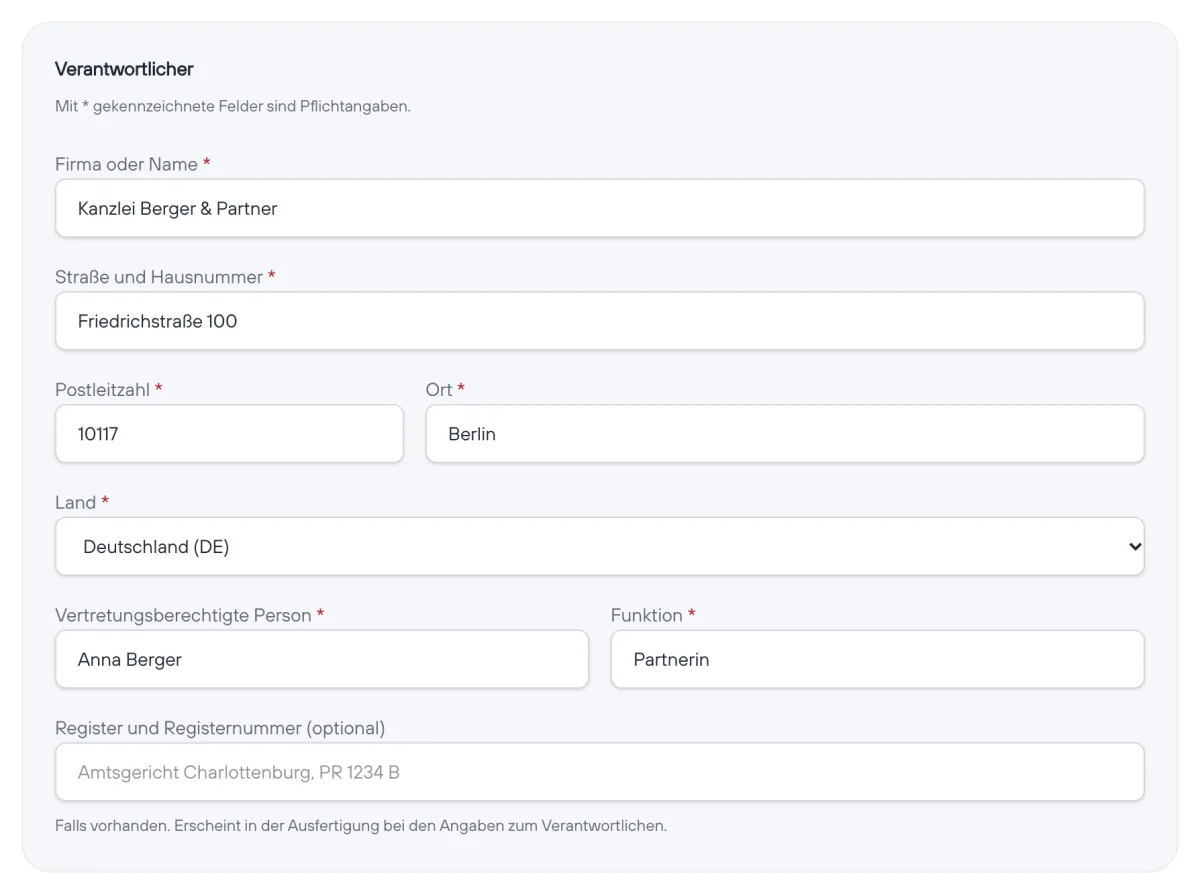
Contracting party: who the controller under Art. 28 GDPR is. 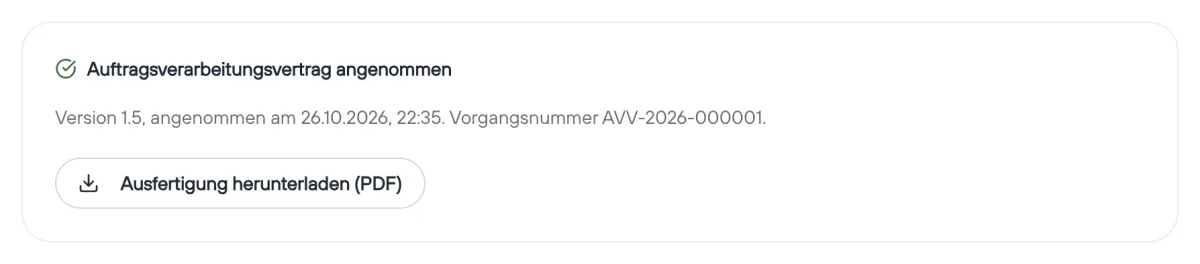
Once accepted: your copy as a PDF. - 3
Download and connect the app
Download the Simpliant Dictation app for Windows or macOS. In the app, click “Im Browser anmelden” (sign in with browser), during setup or later under “Konto” (account). The browser opens your customer area: sign in and confirm when it shows the same code as the app. The device is then connected. Without the browser sign-in, use a personal connection code: generate it in your customer area under “App & devices” and enter it in the app under “Konto” (account): on Windows via “Code manuell eingeben” (enter code manually), on macOS in the code field directly below “Im Browser anmelden”. The code can be used once and expires after 30 minutes; you can generate a new one at any time, during the trial as well.
Fallback without browser sign-in: generate and copy the connection code under “App & devices”. Windows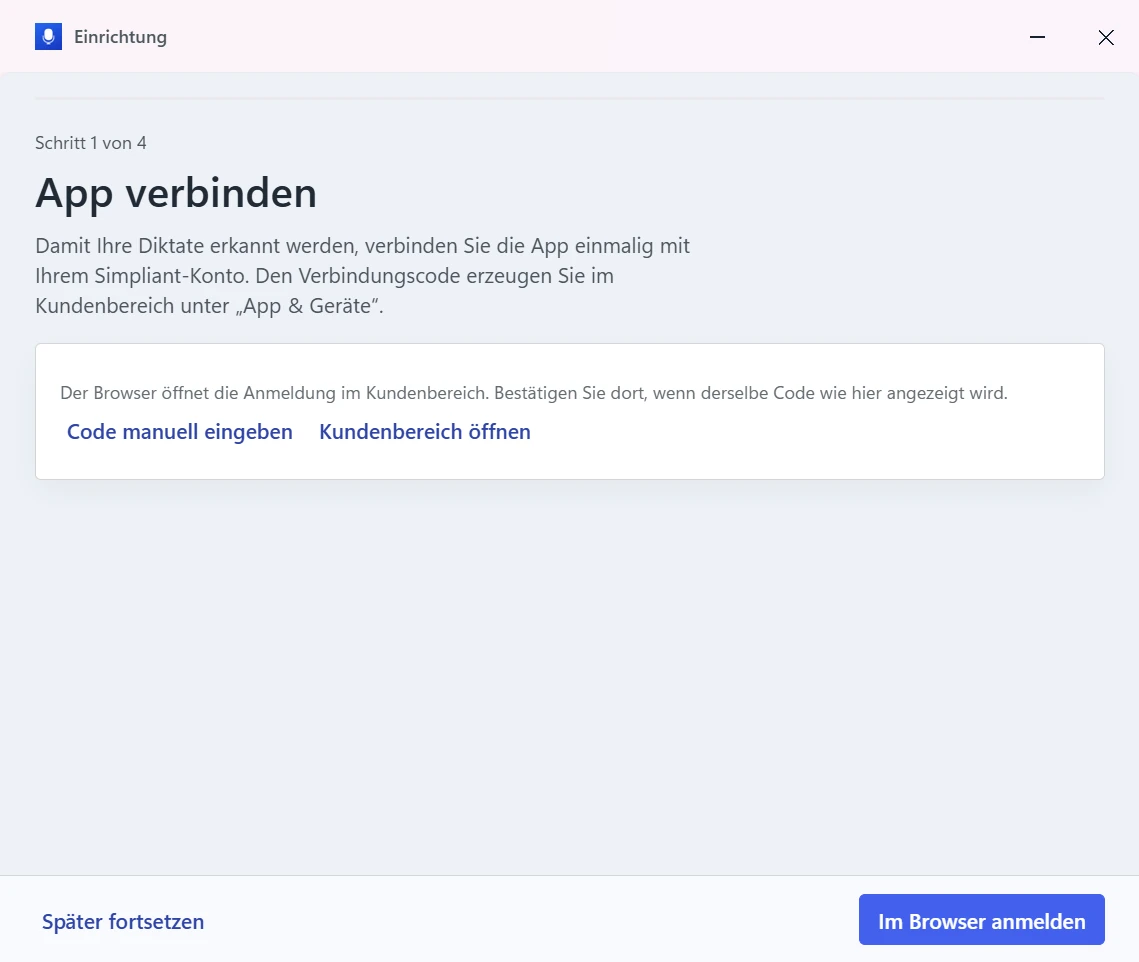
During setup, click “Im Browser anmelden” (sign in with browser). 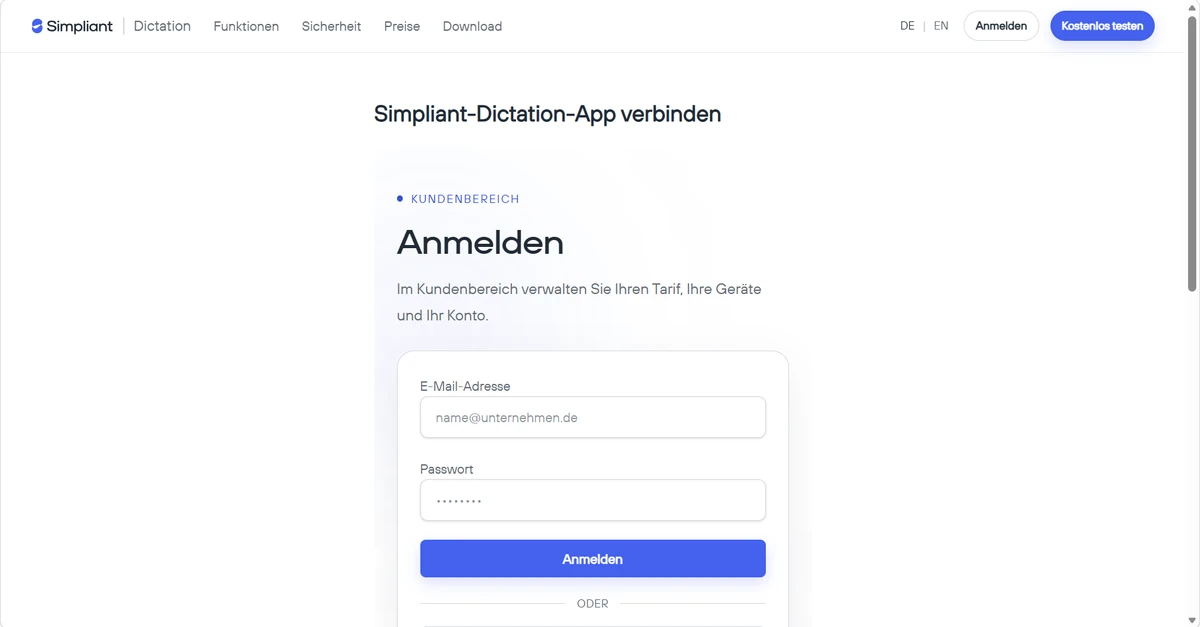
Sign in to your customer account in the browser. Then check the matching code and confirm the connection. macOS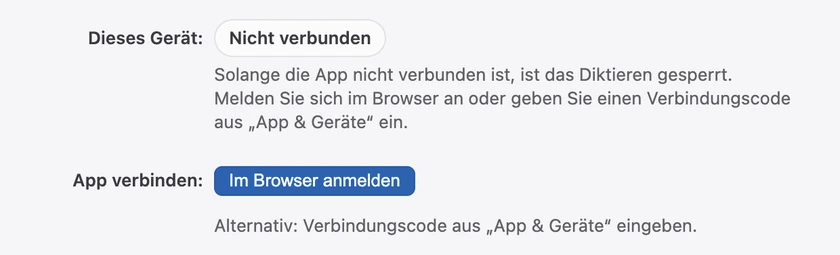
Under “Konto” (account), click “Im Browser anmelden” (sign in with browser). 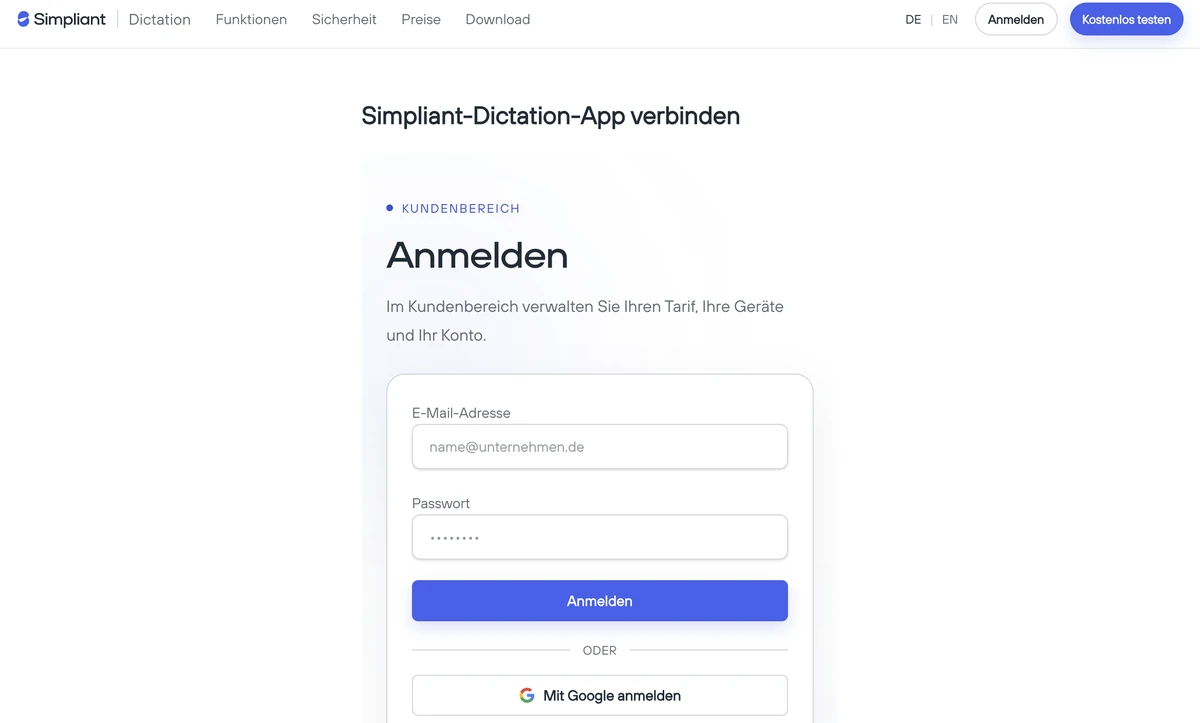
Sign in to your customer account in the browser. Then check the matching code and confirm the connection. - 4
Use your dictation key and speak
Place the cursor in the text field you want. On Windows and on a Mac, hold Caps Lock while you speak or tap it twice; then pressing it again ends the recording. After the recording, the text appears where your cursor is. Esc right after the start discards the dictation; after a few seconds, Esc ends the recording and the text is inserted. Until the text appears, please do not type or switch windows. On a Mac, the app's setup asks for the “Accessibility” permission; without it the dictation key does nothing. You will find it under System Settings → Privacy & Security → Accessibility.
Windows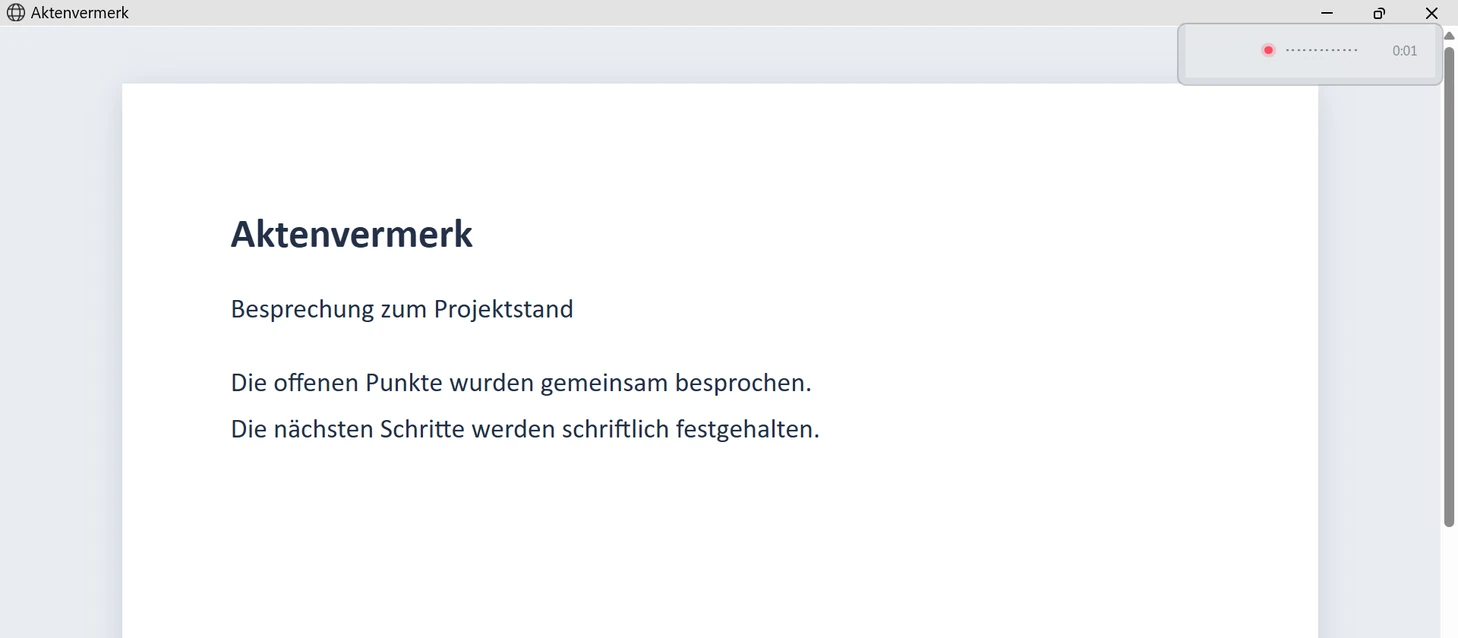
The dictation pill shows the status while recording. macOS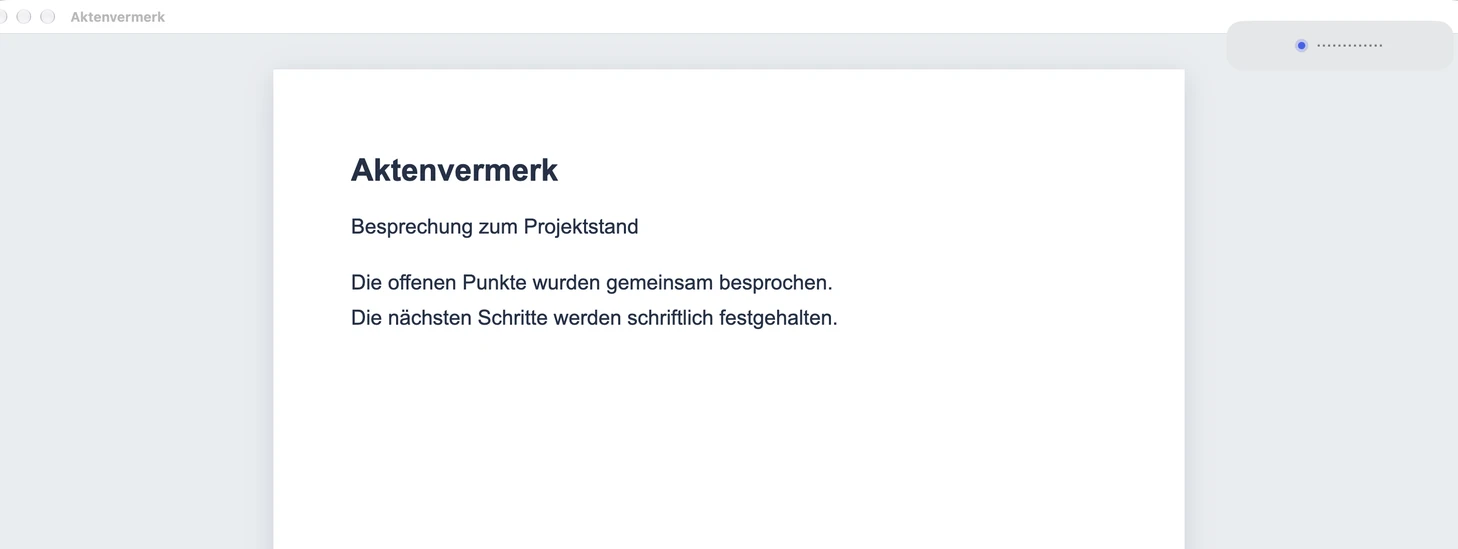
The dictation pill shows the status while recording. macOS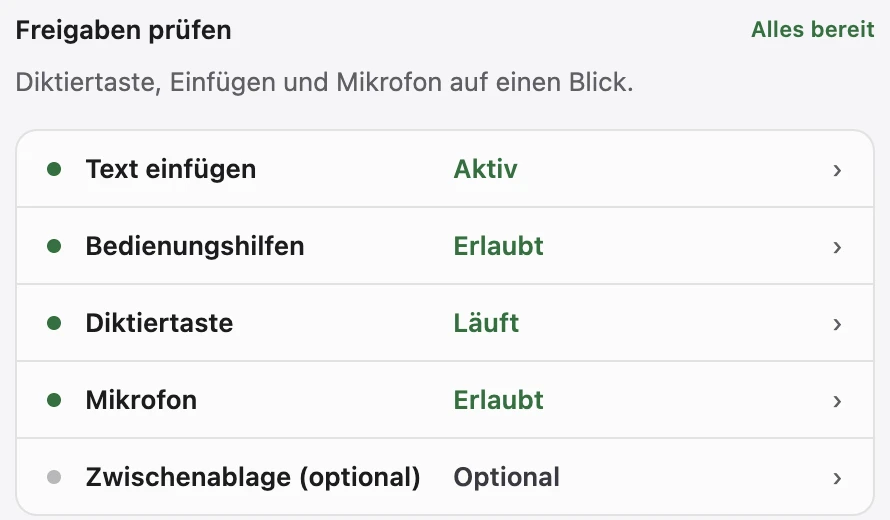
macOS: the “Erweitert” tab shows whether Accessibility and microphone access are granted.
Settings in the app
All settings are optional; the defaults work without changes.
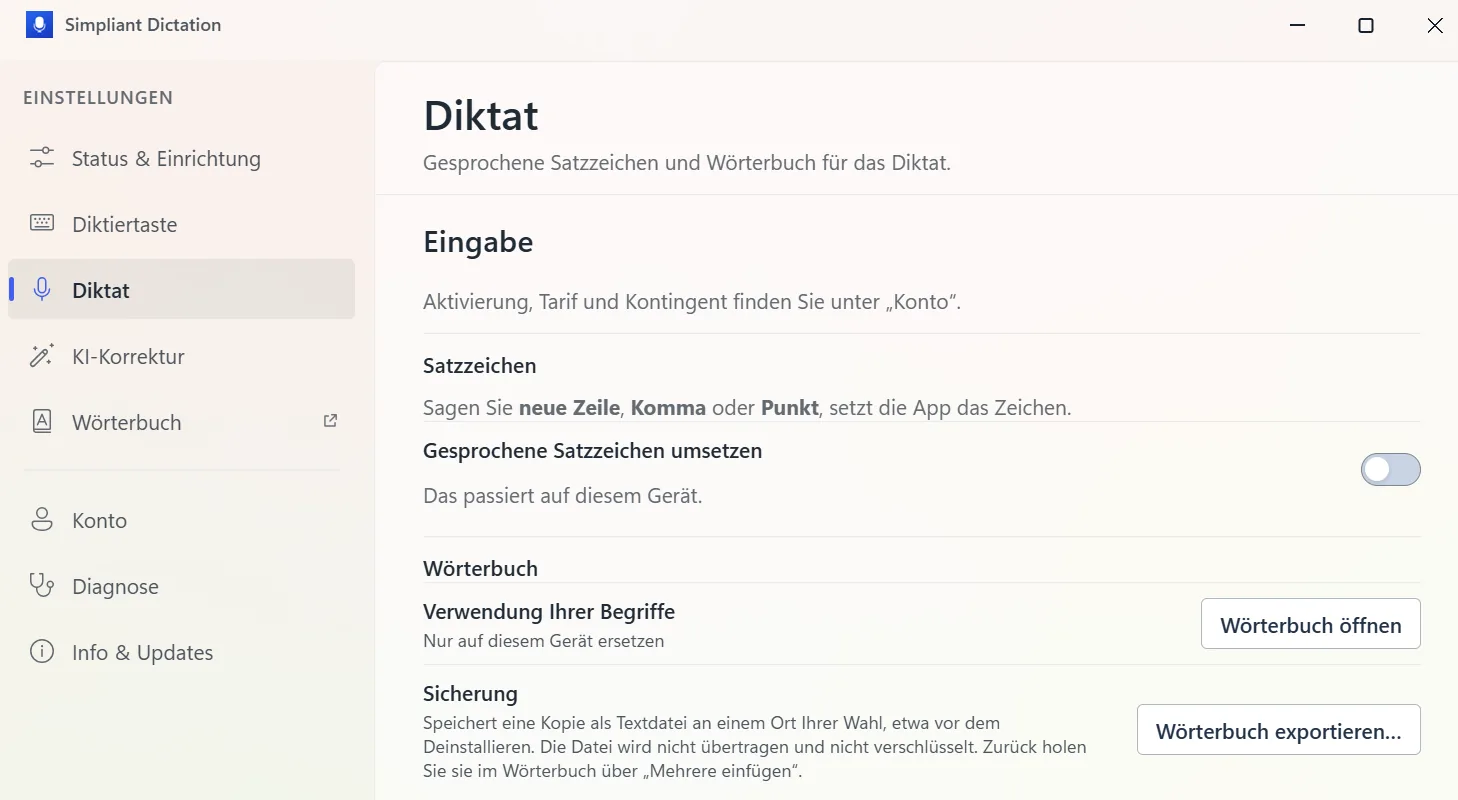
Spoken punctuation
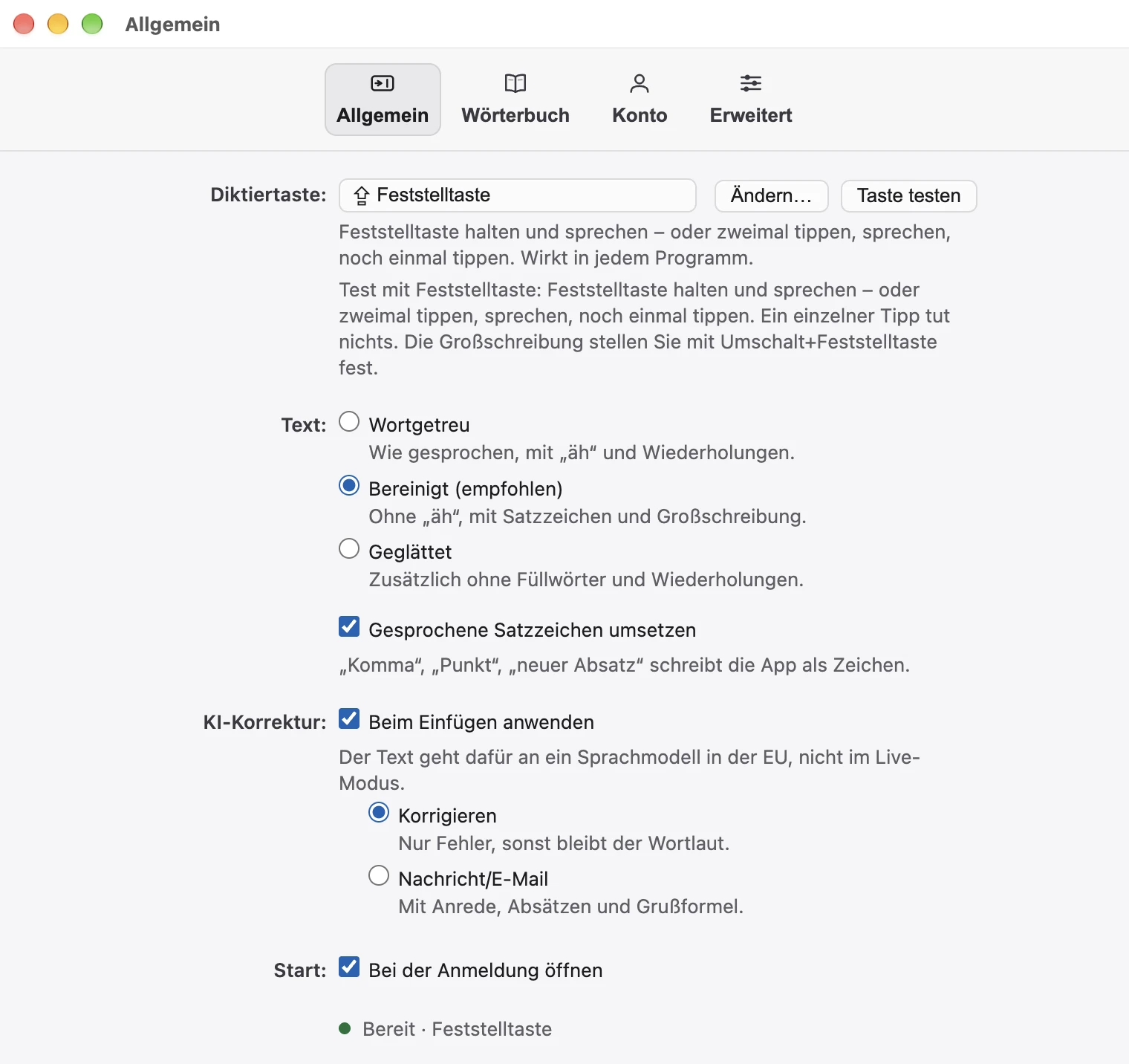
With the “Gesprochene Satzzeichen umsetzen” (apply spoken punctuation) switch, the app turns “neue Zeile”, “Komma” or “Punkt” into characters instead of writing the words. The switch has the same name on Windows and Mac.
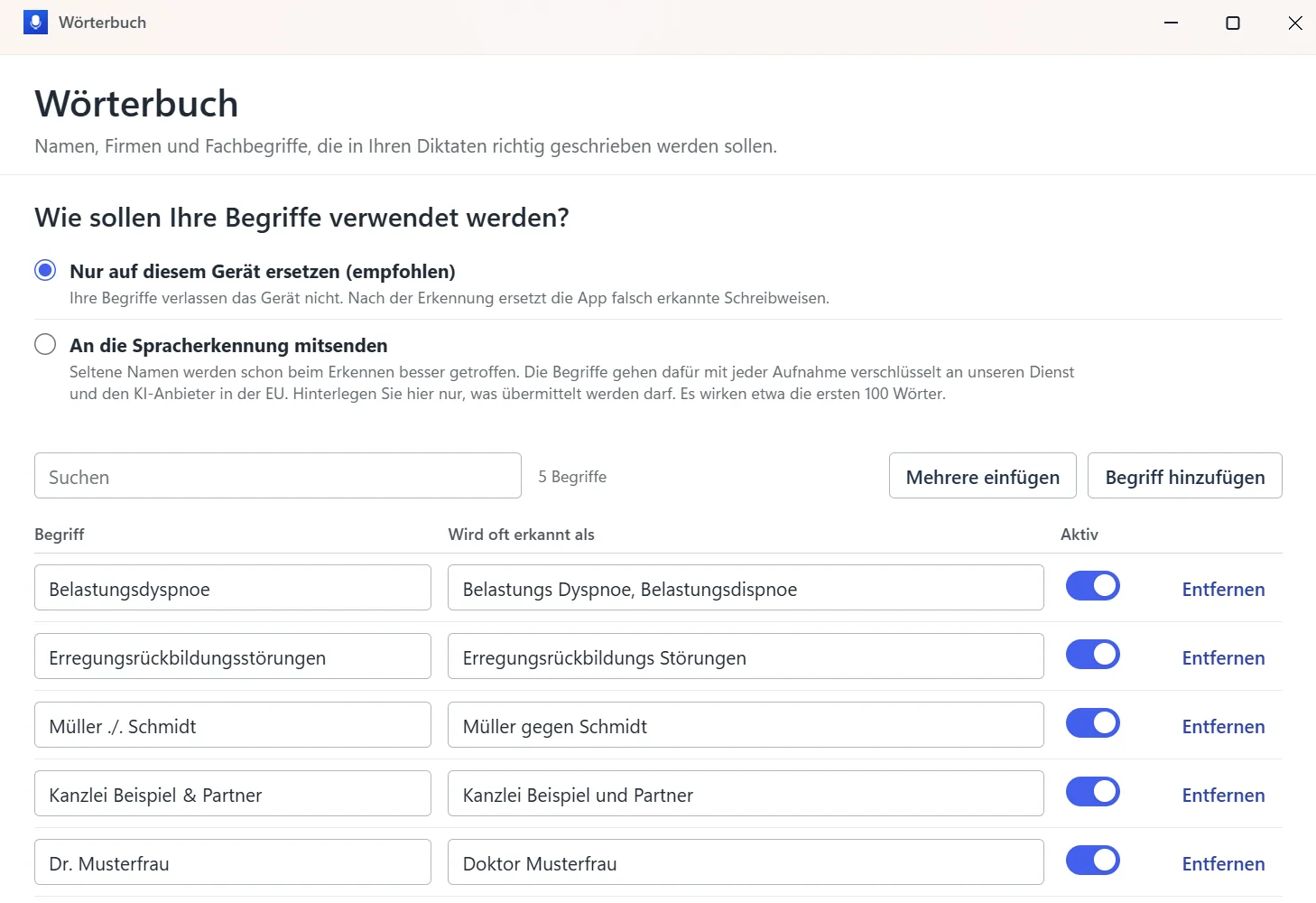
Dictionary
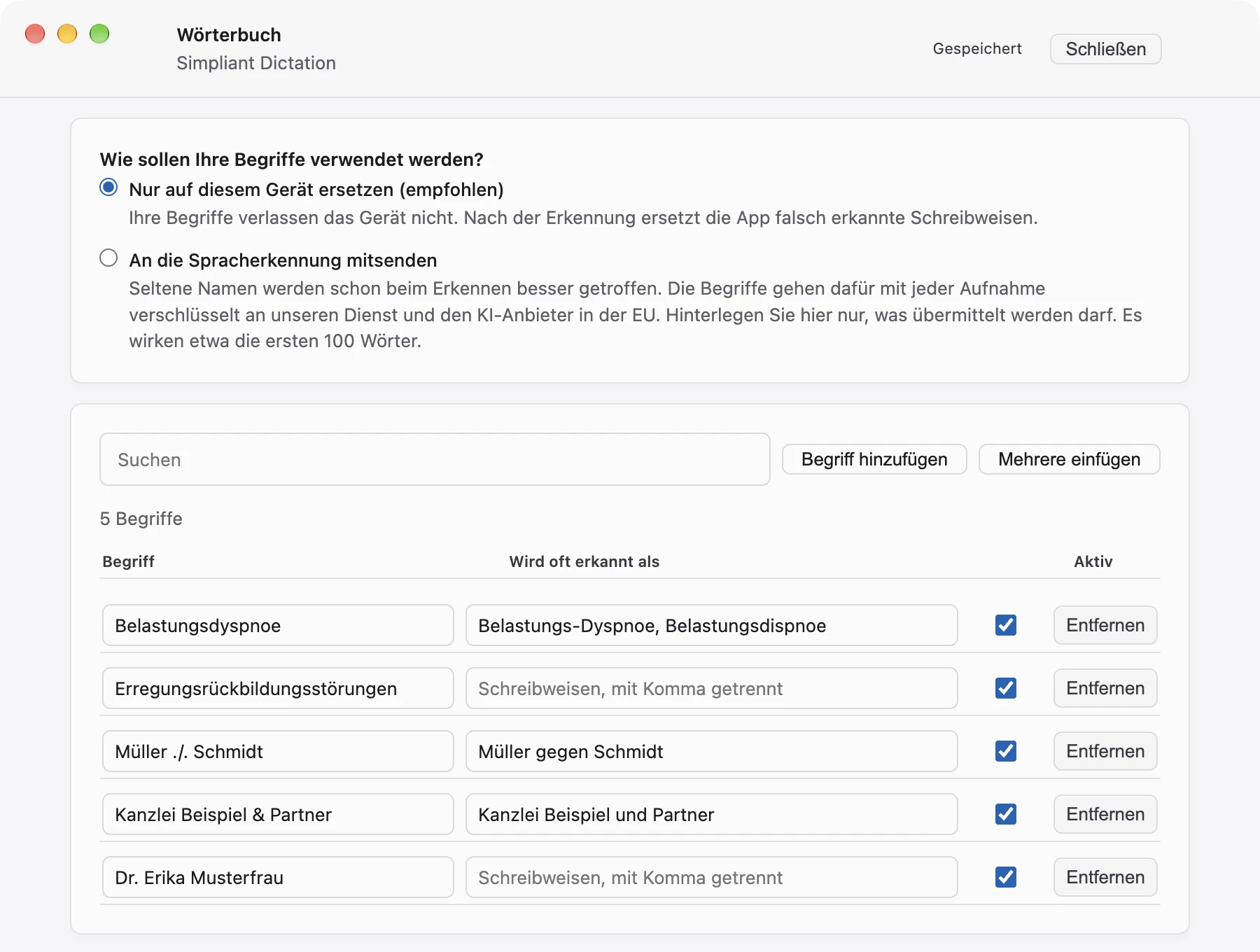
You store names, companies and technical terms in the “Wörterbuch” (dictionary), optionally with misspellings that the app replaces with your spelling. With the default “Nur auf diesem Gerät ersetzen (empfohlen)” (replace on this device only, recommended), the dictionary stays on the device and is applied after recognition. If you choose “An die Spracherkennung mitsenden” (send to speech recognition), only the term in your spelling is sent as a recognition aid, not the misspellings; roughly the first 100 words take effect. Whatever is not sent is still replaced on the device. Your IT can block sending via a policy.
AI correction “KI-Korrektur”
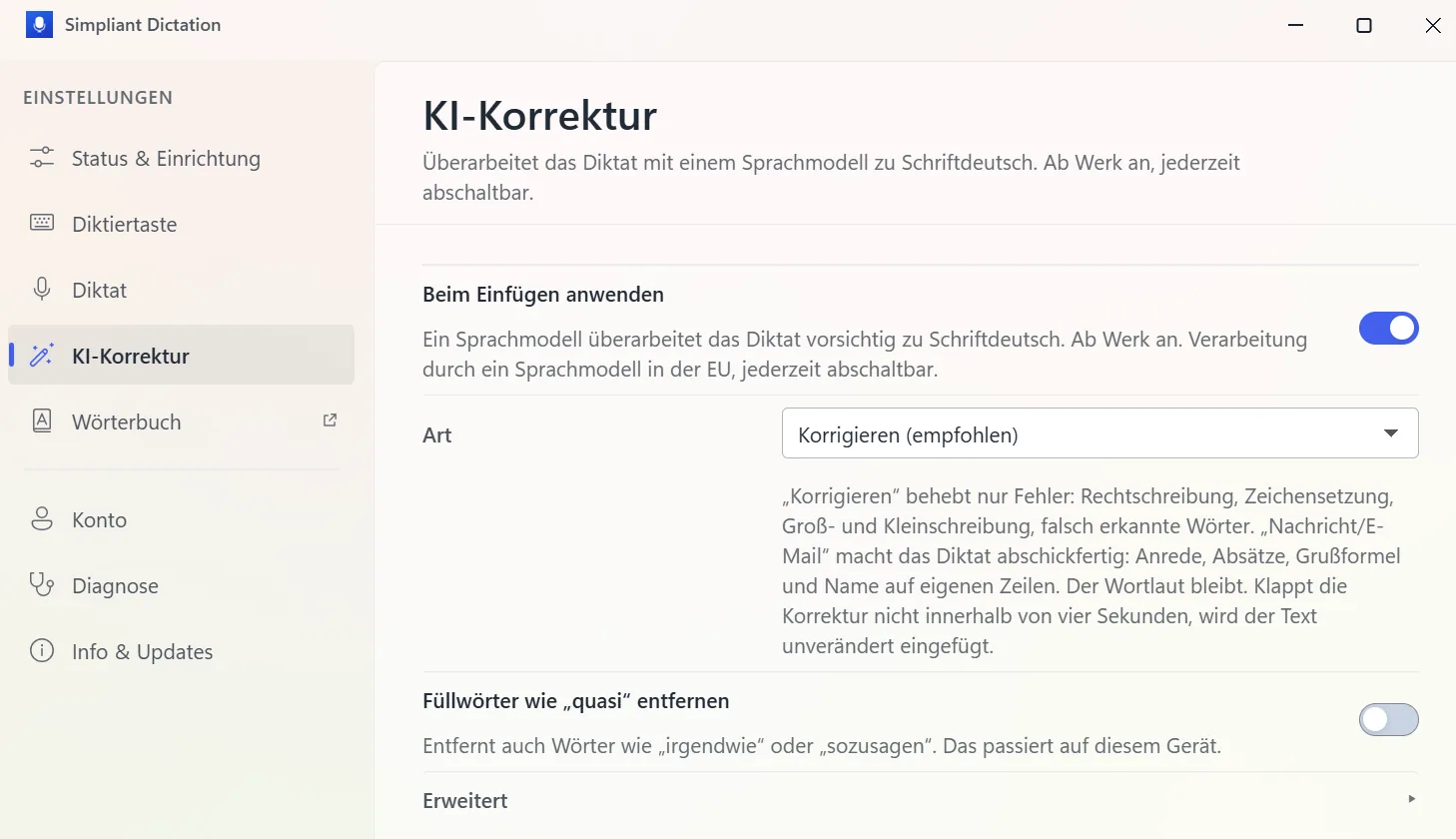
“KI-Korrektur” (AI correction) smooths the punctuation and spelling of your dictation. It is switched on by default on Windows and on the Mac; you can switch it off on Windows on the “KI-Korrektur” page and on the Mac under “Einstellungen → Allgemein” (Settings → General). In the recommended “Korrigieren” (correct) mode it only fixes errors: spelling, punctuation, capitalisation and misrecognised words. “Nachricht/E-Mail” (message/email) makes the dictation ready to send, with greeting, paragraphs and closing; the wording stays the same. The text is sent encrypted to our service in Germany and from there to the AI provider in the EU. The Mac app’s text levels “Wortgetreu” (verbatim), “Bereinigt” (cleaned up) and “Geglättet” (smoothed), by contrast, work only on the device; no text is transmitted for them.
The result in Word
Tap the Caps Lock key twice and speak, tap once to stop; the text appears at your cursor.

Word shows a file note (Aktenvermerk) with the cursor below the heading. The Caps Lock key is tapped twice, and the app’s status panel at the top right shows that recording is running. After speaking and tapping once to stop, this text appears at the cursor (in German): “Mit der Mandantin telefoniert, sie schickt die fehlenden Unterlagen bis Freitag. Dann melde ich mich wegen des Termins.” A second dictation adds: “Der Termin beim Steuerberater wird auf Dienstag, den achtzehnten November, um vierzehn Uhr verschoben.” The filler “äh” that was spoken does not appear in the text.
Names, data and connection codes in all images on this page are made up. The apps and the customer area are shown with their German interface.
Removing the app
On the Mac, choose “Simpliant Dictation entfernen…” (remove Simpliant Dictation) in the app’s “Hilfe” (help) menu, from version 1.0.71 on also in the menu of the app icon in the menu bar; the same button is in the settings on the “Erweitert” (advanced) tab. After a confirmation, the app disconnects from your account, deletes logs and caches, on request also settings and dictionary, and moves itself to the Trash. Do not just drag the app to the Trash by hand: the device then stays connected to your account, and settings and permissions remain.
On Windows, uninstall the app via Settings → Apps → Installed apps (Windows 10: Apps & features). The Windows uninstaller also disconnects the device from your account and asks whether settings and dictionary should be deleted.
If the device was offline at the time or you no longer have it, disconnect it in your customer area under “App & devices”. Your account and subscription remain in place in any case.